Another advantage is that you can also copy and paste player names from other sources because you no longer need to split the names into first names and last names, DfW will do the job for you.
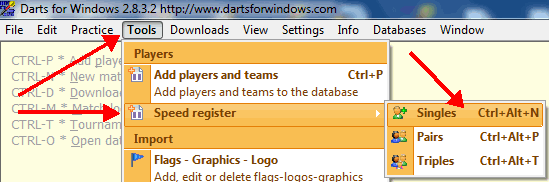
The new tool is available from the "Tools" menu in DfW or from the keybaord shortcut CTRL+ALT+N.
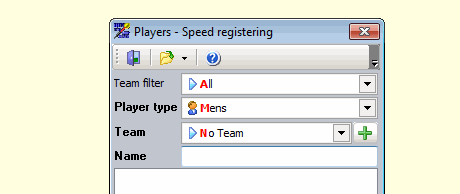
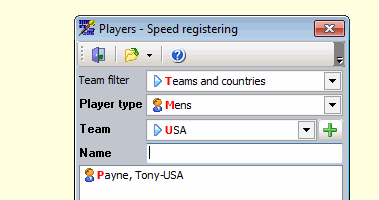
To start adding players, open the screen, set the team name and then enter the player names. To save the player to the database, press the ENTER key
on the keyboard.
Enter the players name and then press the ENTER key to save the player to the database.
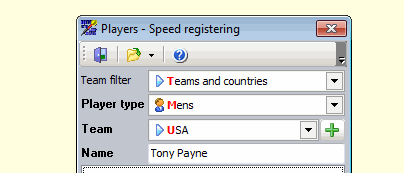
The player has been saved...
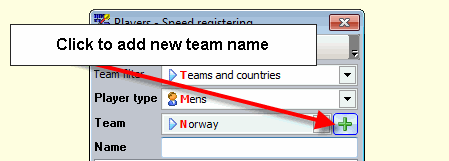
If the team name or country is not in the list (British Counties can be selected by setting the team filter to "Counties - BICC" or to "All"), you can at any time add a new team to the list by clicking the button with the "+" sign.
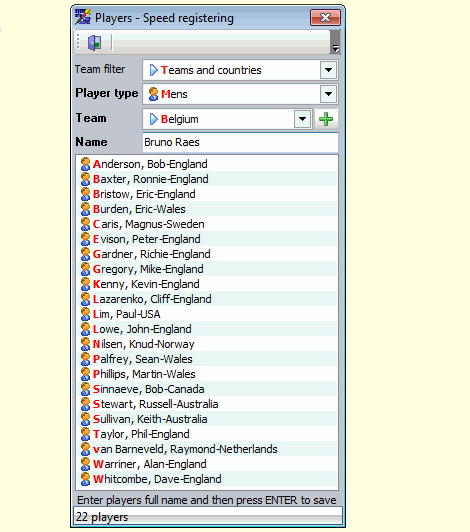
It is of course smart to add the players from the same team/county/country at the same time to save time since you don't have to change the team
name as long as the players belong to the same team/county/country.
From version 2.7.6.8 you can also import players from a flat text file containing the player names.
There are 4 different file formats accepted by Darts for Windows:
1. A flat text file with the format Firstname Lastname.
As a sample, I will show you how to import players by using the entry list from the PDC tournament Eddie Cox Memorial Players Championship.
The PDC always put the entry list on the web prior to their Players Championship tournaments.
The entry list can be found here
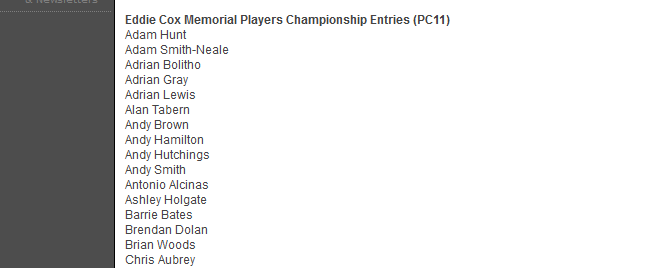
We start by opening a text editor like Notepad for example, personally I use UltraEdit. I select all the players in the entry list by highlighting them. To highlight the players,set the mouse cursor before the first name and drag the mouse to the last character in the list (while the left mouse button is down) to select all players in the entry list. I only use the first list, not the second one since the liste are almost identical. After I have selected all the players in the list I press the CTRL-C keys on the keyboard to copy the names to the Windows clipboard. You can of course also RIGHT click in your web browser and select "Copy" from the menu.
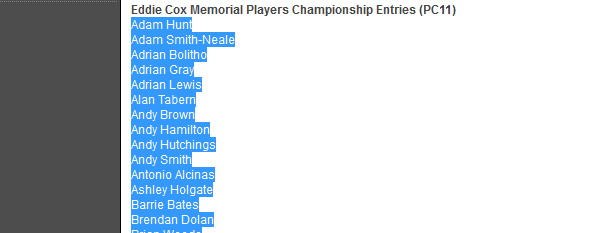
Go to your text editor and press CTRL-V to paste the players into the editor or use the "Edit" menu and click "Paste". As you can see in the screen shot below, the format of the text file is very simple, one name on each line, that's all. Please note that empty lines are not allowed, the import will work, but the import will stop for every empty line you put in and you will have to click the "Ok" button in the error dialog box to continue.
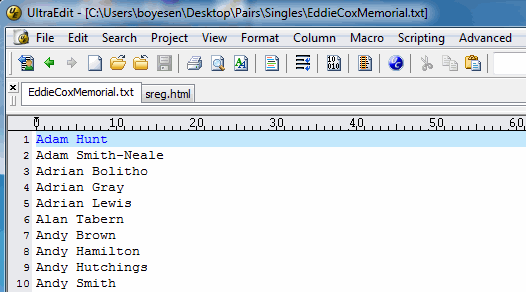
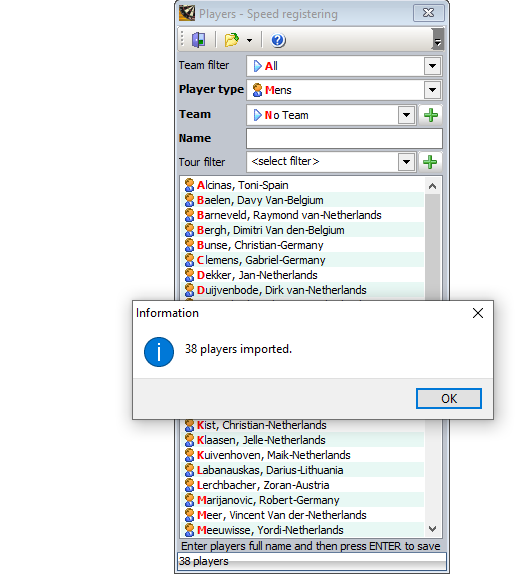
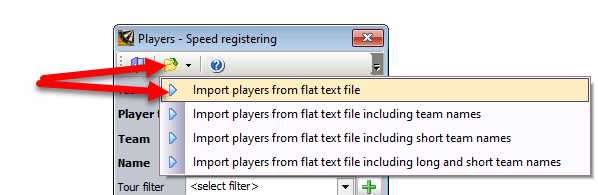
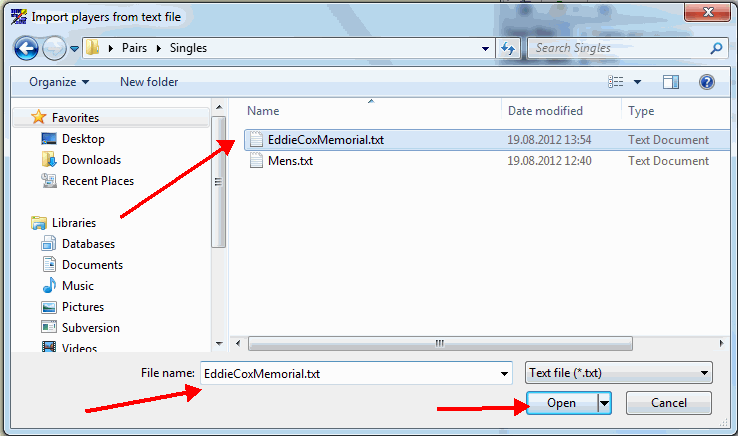
After the names has been pasted into the text editor, save the text file to the hard drive. In my sample I will use PDC as the team name. PDC does not exist in the team list so I add the team to the list by using the procedure described earlier in this document and set the team to PDC. As soon as a team is selected, the "Open" button in the tool bar becomes enabled. Click the "Open" button in the tool bar, select the item "Import players from a flat text file", browse to the text file you just created and select the file and the players are imported into the database.
2. A flat text file with the format Firstname Lastname;Team Name.
Please note that a semicolon is used as a separator for the team name, comma as a separator is no longer supported.
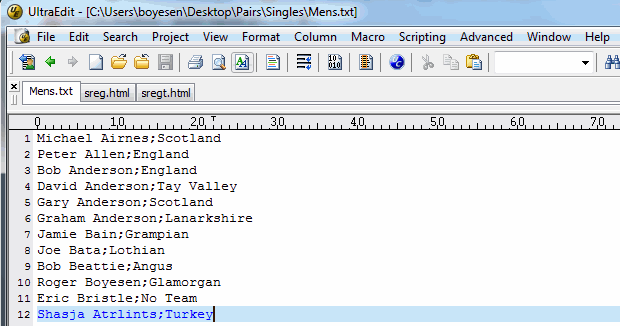
This is how the format of the file for the second option looks like:
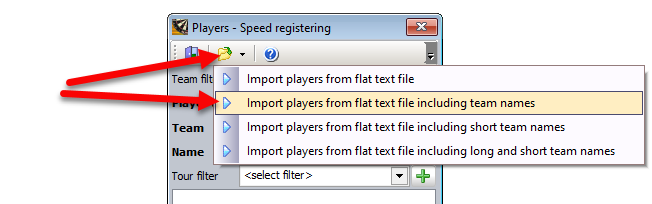
Click the second item in the dropdown menu, "Import players from a flat text file including teams names",
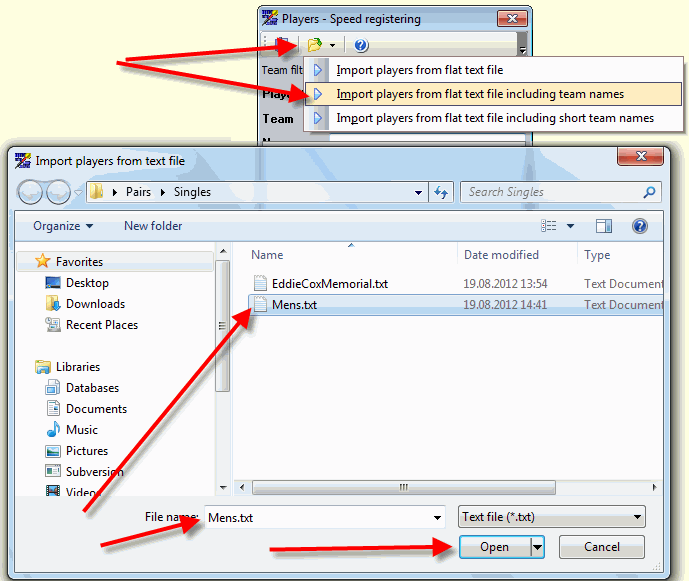
and then browse to and open the text file containing the names and team names.
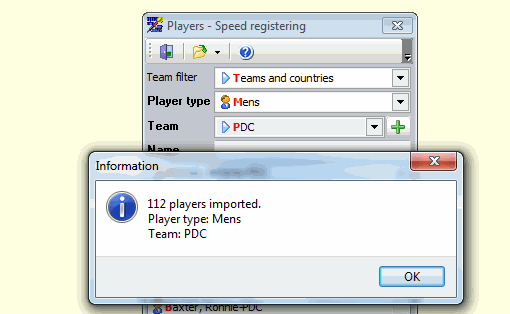
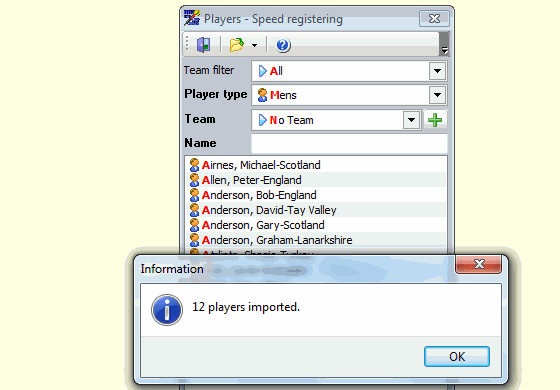
Import done
3. A flat text file with the format Firstname Lastname;Short Team Name. Please note that the separator is a semicolon for the short team name, comma is no longer supported.
Please note that the team name(s) with the corresponding short team name must exist in the database before you start the import or else all players imported with non existing short team names will get the "No Team" team name assigned.
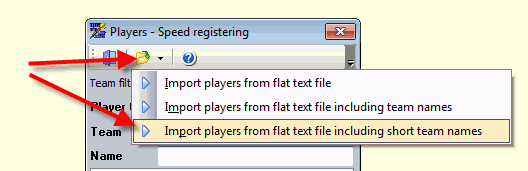
This is how the format of the file for the third option looks like:
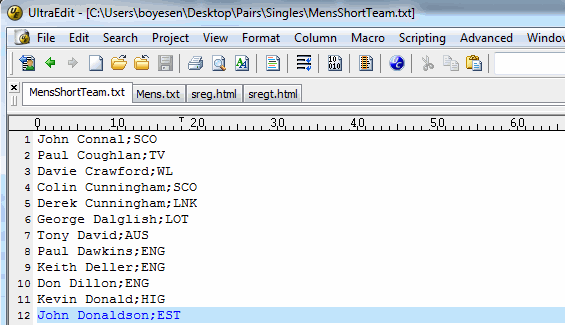
Click the third item in the dropdown menu, "Import players from a flat text file including short team names",
and then browse to and open the text file containing the names and short team names.
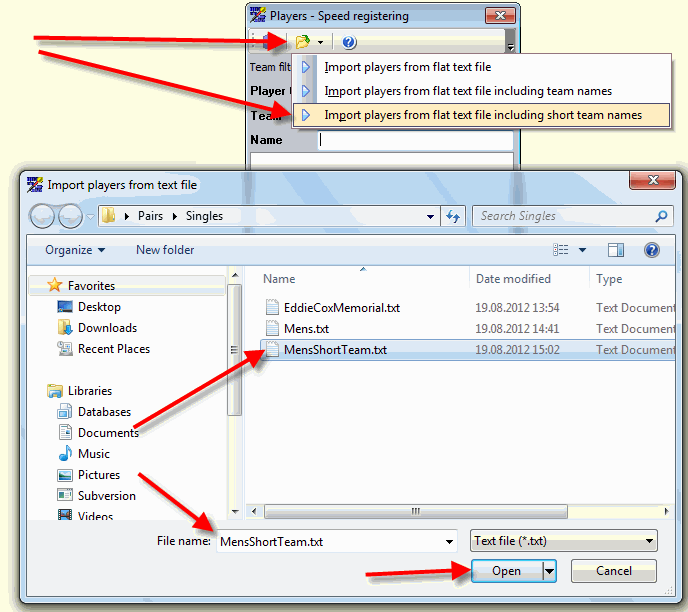
Import done
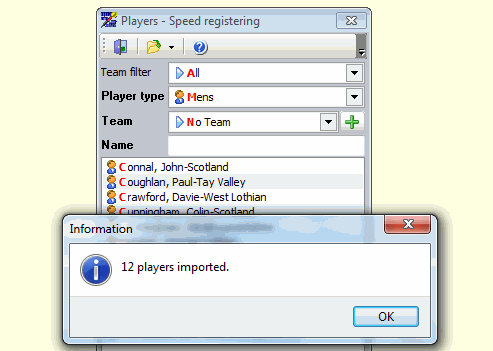
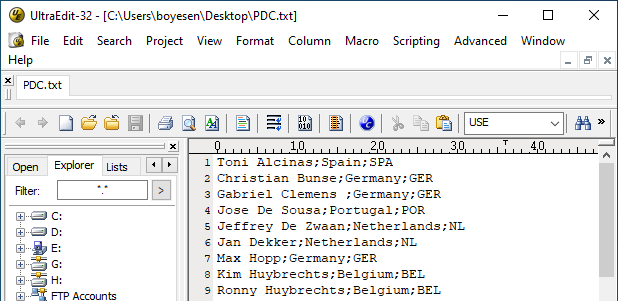
4. A flat text file with the format Firstname Lastname;Long Team Name;Short Team Name.
Example: Eric Bristow;England;ENG
Please note that the separator is a semicolon for the short team name, comma is no longer supported.
This is how the format of the file for the fourth option looks like:
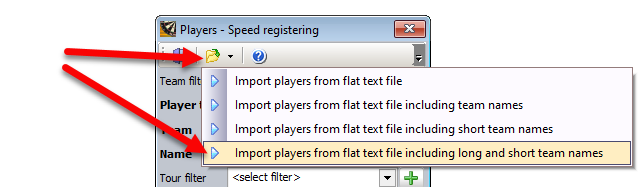
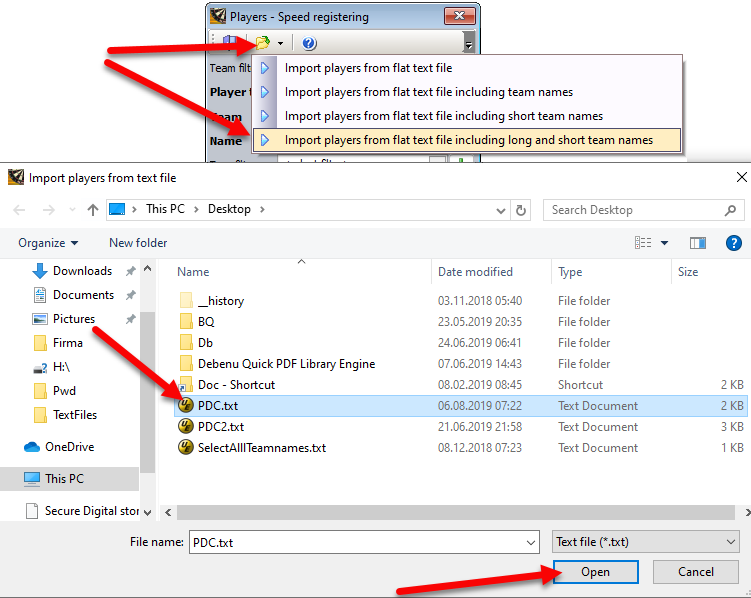
Click the fourth item in the dropdown menu, "Import players from a flat text file including long and short team names",
and then browse to the folder where you placed your import file and open the text file containing the names, long team names and short team names.
Import done